
Introduction
Evolution of Computer to AI Full tutorial guide unveils everything you need to know about Computer, how it started, the pioneers, and all round career opportunities.
Contents Overview
| SN | TOPIC | CONTENT |
| 1 | Introduction to Digital Technology | i. Meaning of digital technology
ii. Importance in modern life iii. Examples of digital devices |
| 2. | Historical Development of Digital Devices | 1. Early calculating tools (Abacus, Napier’s Bones)
2. Generations of computers 3. Evolution from analog to digital devices. 4. Modern digital trends. |
| 3. | Career Opportunities In Information Technology | i. Careers in ICT: software, hardware, networking, data
ii. Emerging digital careers (AI, cyber security, robotics) iii. Skills needed for IT careers. |
| 4. | Basic Computer Hardware Components I | i. Meaning of hardware
ii. Input and output devices iii. Functions and identification of devices iv. Simple maintenance practices. |
| 5. | General Test | Assessment of week 1 – 4 |
| 6. | Basic Computer Hardware Components II: Storage Units | a. Primary and secondary storage
b. Examples: RAM, ROM, hard disk, flash drive c. Storage measurements (bit, byte, MB, GB, TB) |
| 7. | Mid Term Break | – |
| 8. | Basic Software Concepts | 1. Meaning of software
2. System software and application software 3. Examples: OS, Word processors, browsers 4. Functions of an operating system |
| 9. | Computer Booting and Shutdown Processes | 1. Meaning of booting
2. Steps in booting and shutting down 3. Safe handling of devices. |
| 10. | Ms word (introduction) | a. Opening, saving, and editing documents
b. Formatting text and inserting pictures c. Page setup and printing basics |
| 11. | Revision | – |
| 12. | Examination | – |
WEEK 1
TOPIC: INTRODUCTION TO DIGITAL TECHNOLOGY
CONTENTS:
- Meaning of digital technology
- Importance in modern life
- Examples of digital devices
Period 1
MEANING OF DIGITAL TECHNOLOGY
Have you ever wondered how your phone works, or how a video game shows pictures on a screen? All of that is called Digital Technology.
Digital technology is all about using gadgets and machines that work with special signals or codes called “digits” (often just 0s and 1s, like a secret language). These machines process information very, very fast.
So, when we talk about digital technology, we mean using electronic tools, systems, and devices to process, store, and send information.
A Digital Device is any piece of physical equipment that can generate, store, or process information. The computer is the King of all digital devices.
Related articles to read on AI investment
Period 2
IMPORTANCE IN MODERN LIFE
Imagine a world without your smartphone, the internet, or even a digital calculator. It would be very slow and very different! Digital technology has changed the way we live completely.
Here is why it is so important today:
- Communication: In the old days, you had to write letters and wait weeks for them to arrive. Now, you can talk to someone on the other side of the world on video in just one second using apps like WhatsApp or Zoom. Digital tech makes communication very fast and easy.
- Education (Learning): Technology helps us learn. You can find answers to almost any question on the internet. Teachers use computers to show cool videos that help you understand lessons. You can even do your assignments on a computer.
- Business: People buy and sell things online (e-commerce). Businesses use computers to manage their money, track inventory, and find new customers quickly.
- Entertainment: We watch movies on YouTube, play video games, and listen to music using digital devices. No more waiting for a TV show to start at a certain time; you can watch it whenever you want.
- Information: using digital technology we can get news and information instantly without having to wait for the newspaper or magazines in the morning.
- Transportation: GPS systems (like Google Maps) tell us where we are and how to get to a new place. Planes use very smart digital systems to fly.
Digital technology makes life faster, easier, and more fun.
Period 3
EXAMPLES OF DIGITAL DEVICES
You probably use many of these every single day! Here are some common examples of digital devices that we all see around us:
- Computers: This includes desktops (the ones that sit on a desk) and laptops (the ones you can carry around). It is widely used around the world to carry out task and perform major technological instructions.
- Smartphones and Tablets: Your mobile phone is a small, powerful digital computer that fits in your pocket. Tablets are just bigger smartphones. They perform digital task such as sending and receiving mails, making calls, browsing the internet, getting live updates around the world etc.
- Digital Cameras: These don’t use film anymore. They turn pictures into digital code that you can see on a screen or save to a computer. The quality is usually high and more easier to design and modify.
- Calculators: This digital device is used to do simple maths like addition, subtraction, multiplication and division.
- E-Readers: An e-reader platform is a digital service that lets you buy, store and read electronic books(e-books). Most platforms include an online book store, a digital library cloud and reading apps for your tablet, phone, or computer e.g., Amazon Kindle, Apple books, Google Play Books.
- Modern Smart TVs: Televisions are no longer just for watching. “Smart” TVs are like big computers that let you browse the internet and use apps directly inside it. There are install applications you can interact with in other to connect the internet, play virtual games and other digital task.
- Digital Watches: this are smart digital devices that tell the time with digits. “Smart” watches are like wearable phones that track your health and show notifications.
- Game Consoles : (e.g., PlayStation, Xbox) These are very fast digital devices built just for playing games.
- Smart Home Devices: Speakers like Alexa, or smart light bulbs, are also digital devices that can “listen” to you and obey commands.
WEEK 2:
TOPIC: HISTORICAL DEVELOPMENT OF DIGITAL DEVICES
CONTENTS:
- Early calculating tools (Abacus, Napier’s Bones)
- Generations of Computer
- Evolution from analogue to digital devices
- Modern digital trends
Digital devices are very powerful now, but they did not always look or work like this. A long time ago, people used simple tools for counting. Let’s take a journey back in time!
Period 1
EARLY CALCULATING TOOLS:
Before computers were invented, people needed ways to count and do math that were faster than just using their fingers. These tools are the grandfathers of the modern computer.
- The Abacus (around 2000-3000 years ago):
Fig. An Abacus Calculating tool
An abacus is an ancient mechanical calculating tool consisting of a frame with beads sliding on rods that represent numbers via place-value system. Centuries before the modern written numeral system was adopted, it served as the primary instrument for arithmetic across global civilizations.
- It does not need any electricity or batteries. It is powered by your hand!
- Even though it’s ancient, people still use it to teach math, especially in some parts of Asia.
Key Components and Structure:
- Outer Frame: A rectangular wooden or plastic border holding the entire device together.
- Rods/wires: vertical columns where each represents a specific place value, moving from right to left.
- Beam: a horizontal divider that separates the rods into two distinct numerical sections.
- Upper beads(“Heaven Beads”): Located above the beam, each bead generally carries a value of 5.
- Lower Beads (“Earth Beads”): Located below the beam, each bead carries a value of 1.
- Napier’s Bones (1617 AD):
Fig. A Napier’s Bones (1617 AD) Calculating tool
Napier’s Bones is a manual calculating device invented by Scottish mathematician John Napier in1617. It was designed to simplify difficult mathematical operations by changing difficult multiplication and division into easy addition and subtraction.
Key components:
The device uses a smart physical design to store mathematical data:
- The Rods: a set of ten carved strips made of bones, wood, ivory or metal.
- The digits: Each rod is printed with multiplication table for a specific number (from 0-9)
- The Diagonals: Each square on a rod is split diagonally by a line.
- The layout: the upper-left triangle holds the tens digits and lower-right triangle holds the ones digits.
- The index: a fixed baseboard or extra rod labelled 1 through 9 to guide the user’s rows.
Related articles to read on AI investment
Period 2
GENERATIONS OF COMPUTERS
The computer we use today is part of the “Fifth Generation.” Computer development is broken into five parts (generations), and each one used a new, better kind of “brain” part (component).
| Generation | Key Component | Properties |
| First Generation (1940s – 1950s) | Used Vacuum Tubes | 1. It was very huge, one computer could fill an entire large room.
2. They got very hot. 3. They used a lot of electricity 4. It easily breaks down |
| Second Generation (1950s – 1960s) | Used Transistors | 1. They were much smaller than vacuum tubes.
2. Computers became smaller, faster, cheaper. 3. It used less electricity. |
| Third Generation (1960s – 1970s) | Used Integrated Circuits (ICs) | 1. Many transistors were reconstructed into tiny “chip” of silicon.
2. Computers got even smaller. 3. Ability to use operating system. 4. It could run many programs at once. 5. It was the first computer to use a keyboard and monitor. |
| Fourth generation (1970s – Present | Uses Microprocessors | 1. The entire IC chip got even smaller and more powerful.
2. This is the era of the modern “Central processing Unit” (CPU). 3. This made PCs (Personal Computers), laptops, and smartphones possible. 4. This generation brought us the internet. |
| Fifth Generation (now & future) | Uses Artificial Intelligence | 1. These are computers that are being built to “think” and “learn” like humans.
2. They can understand voice commands (like Siri or Google Assistant) and make decisions. 3. We are still developing this till today. |
EVOLUTION FROM ANALOGUE TO DIGITAL DEVICES
Before everything became digital, many machines were Analog.
Analog Devices: These devices use continuous signals that can change in many ways. For example, a traditional clock with hands that continuously sweep around the face is analogue. An old record player that uses a needle as an antenna is analog. They do not use computer code.
Digital Devices: These devices only see things as clear, specific steps (on or off, like turning a light on and off). Digital information is broken down into a series of 0s and 1s. For example, a digital clock that shows numbers like “12:00” is digital. A streaming music service like Spotify uses digital data.
Difference between Analogue And Digital Devices
| Feature | Analogue Devices | Digital Devices |
| Data Format | Continuous physical waves | Discrete numbers (0 and 1) |
| Speed | Slower processing | Very fast processing |
| Accuracy | Low accuracy (hard to read) | High accuracy (exact numbers) |
| Storage | Heavy physical storage (tapes, paper) | Small, electronic storage (microchips) |
| Examples | Wall clock with hands, mercury thermometer. | Smart watch, digital thermometer. |
Early Founders of the Analogue Computer:
- John Napier’s Bones (1550 -1617): John Napier was a famous Scottish Theologian and mathematician. He invented Napier’s rods also known as Napier’s bone in 1617. The rods were mainly multiplication tables written on sticks of wood or bones. The rods were also used in taking square roots and cube roots.
- Blaise Pascal (1623 – 1662): Blaise Pascal was a French mathematician, physicist and religious who made important contributions to the construction of mechanical calculators. He built the first digital calculating machine in 1642.
- Gottfried William Von Leibniz’s machine (1646 -1716): He was a German Philosopher and mathematician who discovered the fundamental principles of Calculus in In 1972, he also invented a calculating machine and calculating square roots.
- Joseph Marie Jacquard’s Loom (1752 -1834): He was a French silk weaver and inventor. He invented the Jacquad’s automatic loom mechanism in 1801. This device was controlled by punched cards that controlled the weaving of the cloth so that any desired pattern could be obtained automatically. Jacquard punched cards were adapted by Charles Babbage as a input or output medium for his analytical engine and by Herman Hollerith to feed data to his census machine. Punched cards were used for inputting data into the early digital computers.
Fig. Image of Joseph Marie Jacquad’s automatic loom for weaving of cloths
Related articles to read on AI investment
- Charles Babbage (1822/1837): known as the “Father of the Computer”. He designed the Difference Engine and the Analytical Engine. His design laid the foundation for modern digital computers.
- Philip Emeagwali: Philip Emeagwali was born 23rd August 1954 in Akure, Nigeria. In April 1967, he worked as a computer scientist where he contributed greatly to Internet Technology. Indeed, he was voted one of the twenty innovators of the internet Due to this, he is widely called a “father of the Internet”. Emeagwali has received more than 100 prizes, awards and honours. These include the 1989 Gordon Bell Prizes (Supercomputing Nobel Prize), the Distinguished scientific Award of the World Bank (1998) and Best Scientist in Africa Award of the Pan African Broadcasting. President Bill Clinton of the US described him as “one of the great mind of the information age”.
- Lady Ada Lovelace (1843): recognized as the world’s first computer programmer. She wrote the first algorithm intended to run on Babbage’s Analytical Engine.
- Alexander Graham Bell (1876): Invented the analogue telephone. It converted the physical vibrations of human voices into continuous electrical waves over a wire.
- Thomas Edison (1877): Invented the phonograph, an analogue sound machine that recorded audio by scratching physical grooves onto tin cylinders and wax discs
Founders of the Transition Era (1940s – 1970s)
These scientists discovered how to stop relying on heavy moving gears and start using electricity to process data.
- Alan Turing (1936): A mathematician who created the “Turing Machine,” a brilliant mathematical model that proved a single machine could simulate any computer algorithm.
- John von Neumann (1945): Designed the Von Neumann Architecture. This is the standard design layout used by almost every modern digital computer today (CPU, memory, input/output).
- John Bardeen, Walter Brattain, and William Shockley (1947): Co-invented the Transistor at Bell Labs. This tiny electronic switch replaced bulky vacuum tubes and is the core building block of all digital technology.
- Jack Kilby and Robert Noyce (1958/1959): Separately invented the Integrated Circuit (Microchip). They figured out how to pack millions of digital transistors onto a tiny piece of silicon.
Pioneers of the Digital & Smart Age (1980s – Present)
These modern inventors put digital microchips into affordable, compact devices for everyday users.
- Steve Jobs and Steve Wozniak (1976): Co-founded Apple and created the Apple I and II, making personal digital computers small and cheap enough for regular homes and classrooms.
- Bill Gates and Paul Allen (1975): Co-founded Microsoft and created the Windows operating system, creating user-friendly digital software for the masses.
- Tim Berners-Lee (1989): Invented the World Wide Web (WWW), creating the digital internet network that connects global devices today.
- Fujio Masuoka (1980s): Invented Flash Memory while working at Toshiba. This digital technology led to modern USB drives, memory cards, and smartphone storage.
Related articles to read on AI investment
Period 3
MODERN DIGITAL TRENDS
The modern digital new trends are as follows:
- Internet of Things (IoT): This means putting internet connection and computer technology into everyday objects so they can “talk” to each other and to you. Examples include a smart fridge that can text you to buy milk, or a smart light bulb you can control from your phone from anywhere.
- Artificial Intelligence (AI): Computers are getting better at performing tasks that normally require human intelligence, like understanding language, driving cars, or suggesting what videos to watch next.
- Wearable Technology: Devices like smartwatches and fitness trackers are computers that you wear on your body.
- Cloud Computing: This means storing your photos, videos, and files on the internet instead of just on your computer’s own hard drive. Examples include iCloud, Google Drive, and OneDrive.
WEEK 3
TOPIC: CAREER OPPORTUNITIES IN INFORMATION TECHNOLOGY
CONTENTS:
- Careers in ICT: software, hardware, networking, data
- Emerging digital careers (AI, cybersecurity, robotics)
- Skills needed for IT careers
Period 1
CAREERS IN ICT:
SOFTWARE, HARDWARE, NETWORKING, DATA:
There are four main branches where people find jobs in technology. Let’s look at them like a tree:
SOFTWARE:
- Software Development (The Brain and Apps): This is all about writing the instructions (programs) that tell computers what to do.
- Software Developer (or Programmer): The people who make video games, mobile apps (like Snapchat or Instagram), and the programs you use on a computer. They create new tools.
- Web Developer: These people use code to build and design websites.
HARDWARE ENGINEERING (THE PHYSICAL PARTS)
This is all about the tangible parts of a computer.
- Computer Engineer: They design and build the circuits, processors, and physical parts that make a computer work. They make them faster and smaller.
- Computer Support Specialist (Technician): The “Computer Doctor.” They fix broken computers, install new ones, and help people when their gadgets stop working.
NETWORKING AND COMMUNICATIONS (CONNECTING COMPUTERS)
This is all about getting computers to “talk” to each other.
- Network Administrator: The person in charge of setting up and taking care of the network that connects computers in a whole office or school, so they can share files and the internet safely.
DATA MANAGEMENT (HANDLING INFORMATION)
This is all about keeping track of the massive amount of information computers create.
- Database Administrator: They are like librarians for digital information. They ensure that huge collections of data (like all the user accounts for Facebook) are safe, organized, and can be accessed easily.
- Data Analyst: These people take a mountain of information and find patterns to help businesses make smart decisions.
Period 2
EMERGING DIGITAL CAREERS (AI, CYBERSECURITY, ROBOTICS)
This is the newest, most exciting part of IT where everything is done online, this is less physical approach to career or skills, here you need to develop a digital skill to pursue any this careers. These jobs are just starting to grow now.
- AI (Artificial Intelligence) Specialist/ Automation: these are People who build and train smart computers (like self-driving cars or robots). Helps businesses automate repetitive tasks using AI tools and platforms. They can build automated customer-service systems, workflows, content systems and business processes without necessarily being traditional software developers.
- Prompt Engineer / AI Workflow Designer: Designs effective instructions and workflows for AI systems. The role is evolving beyond simple prompting into creating reliable AI processes that combine models, tools, data and business rules.
- Digital Finance & FinTech Specialist: works at the intersection of finance and technology – covering areas such as digital payments, blockchain, financial data, AI-powered investing tools, and fintech products.
- AI Creative & Content Specialist: uses generative AI to produce videos, images, graphics, animations, advertisements, and other digital content. The valuable skill is not simply generating AI content but combining AI with creativity, storytelling, editing and brand strategy.
- Cybersecurity Analyst: they protect companies websites, applications, and digital systems from cyberattacks. With more businesses moving online and using AI, cybersecurity skills are becoming increasingly important.
- Data Analyst: turns large amounts of data into useful business insights. They analyze information, identity trends, create dashboards, and explain what the numbers mean so organizations can make better decisions.
- No-code Developer: Builds websites, applications, automations and business systems using platforms that require little traditional programming. AI makes it possible for non-traditional developers to create increasingly sophisticated digital products.
- Robotics Engineer: People who design and build robots to do tasks that are too dangerous, dirty, or dull for humans.
Related articles to read on AI investment
Period 3
SKILLS NEEDED FOR IT CAREERS
You don’t just learn one thing and become a computer wiz. To have a successful IT career, you need a mix of skills:
- Problem-Solving: This is the #1 skill! IT jobs are all about solving puzzles. When a computer breaks or code won’t work, you have to be a detective to find and fix the problem.
- Communication: IT pros need to talk to “regular” people. A doctor might need their computer fixed but doesn’t know technical terms. You have to be able to explain computer things simply.
- Curiosity and Constant Learning: Technology changes fast. You can’t just learn one language (like Python or Java) and stop. You have to always be curious and want to learn the newest tools and systems.
- Logical Thinking: Computers follow logic (Yes/No, True/False). You have to be a good thinker who can break big problems down into small, step-by-step pieces.
Related articles to read on AI investment
WEEK 4
TOPIC: BASIC COMPUTER HARDWARE COMPONENTS I
CONTENTS:
- Meaning of hardware
- Input and output devices
- Functions and identification of devices
- Simple maintenance practices.
Period 1
A computer is made of two main parts: the things you can see and touch (Hardware) and the programs inside that you can’t touch (Software).
MEANING OF HARDWARE
Think of a bicycle. The metal frame, the wheels, the pedals, and the chain are things you can touch. That is like a computer’s Hardware.
Definition: Computer hardware is any physical component that makes up a computer system. It is anything you can physically touch with your hand. Hardware cannot do anything by itself; it needs software to give it instructions.
INPUT AND OUTPUT DEVICES
- INPUT DEVICES
These are the tools we use to put information (data) into the computer.
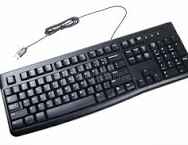
- Keyboard: The most common input device. You use it to type words, numbers, and commands.
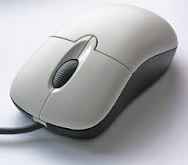
- Mouse: A device you roll on a flat surface. You use it to move a pointer on the screen to click on things and make selections.
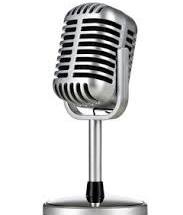
- Microphone: Used for inputting sound and voice commands (like talking to a friend on video call or using Google Assistant).
- Scanner: Used to put real paper photos or documents into the computer, turning them into digital pictures.
- Digital Camera / Webcam: Puts live or still video images into the computer.
- Touchpad: The small square on a laptop that works like a mouse, where you use your finger as the pointer.
- OUTPUT DEVICES
These are the tools the computer uses to show us the results of what it has done.
They include:
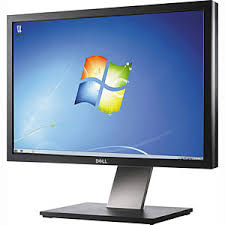
- Monitor (or Screen): The most common output device. It shows all the visual information (pictures, words, and videos).
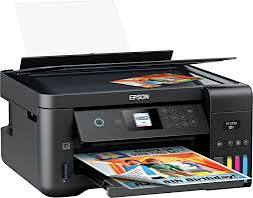
- Printer: This puts text and pictures from the computer onto paper.
- Speakers / Headphones: Used for outputting sound and audio from the computer.
- Projector: Used to make the image from the computer screen much bigger on a wall or screen, often for presentations.
Period 2
FUNCTIONS AND IDENTIFICATION OF DEVICES
When you look at a computer, you should be able to identify these common parts and know what each one does.
| Device | Type | Main Function | How to Identify |
| Keyboard
|
Input | Typing text and commands | A board covered in letters, numbers, and other symbol buttons |
| Mouse
|
input | Pointing and clicking to make selections | A small device with two buttons and usually a small scroll wheel in the middle |
| Microphone
|
Input | Capturing audio | A small stand or a clip you speak into |
| Monitor
|
Output | Showing pictures, video, and text. | It looks like a small television screen |
| Printer
|
Output | Putting information on paper | A machine that takes blank paper and outputs paper with ink |
| Speakers
|
Output | Playing music, voices, and other sounds. | Small boxes, usually one on each side of the monitor. |
| Projector | Output | Display text, images and videos | Used to display already processed text, images and videos on screen or display screens. |
Period 3
SIMPLE MAINTENANCE PRACTICES
We have to take good care of our computer hardware so that it lasts a long time and doesn’t break. Here are simple rules to follow:
- Keep it clean and dry: Never have food or drink near a computer! Water or sugary drinks can instantly ruin keyboards, mice, and other sensitive parts.
- Turn off correctly: Always shut down the computer using the correct software process (Start -> Power -> Shut down) instead of just pulling the plug.
- Use a power surge protector: A special power strip that can protect your computer if lightning strikes or the power gets too strong (surges).
- Use a gentle hand: Don’t hit the keyboard, mouse, or screen. Treat them carefully.
- Dust carefully: Dust can clog up fans and make a computer overheat. Use a special compressed air can to gently blow dust away. Never use water!
WEEK 5:
MID-TERM TEST
This is an assessment of what you have been learnt from Week 1 to Week 4.
WEEK 6
TOPIC: BASIC COMPUTER HARDWARE COMPONENTS II: STORAGE UNITS
CONTENTS:
- Primary and Secondary Storage
- Example: RAM, ROM, hard disk, flash drive
- Storage measurements (bit, byte, MB, GB, TB)
- Simple maintenance practices.
- Importance of Data Storage
Period 1
PRIMARY AND SECONDARY STORAGE
We can think of storage like your own school backpack. You have things in your hand that you are using right now, and things in your backpack that you will use later.
- Primary Storage (Working Memory)
- This is the computer’s quick-access brain memory. It’s where it stores the information that it is working with right now.
- It is very fast, but it usually forgets everything when the computer is turned off.
- Secondary Storage (Permanent Memory)
- This is like your computer’s digital filing cabinet or warehouse. This is where it stores all your files, photos, videos, and apps so that you can find them again, even after you turn the computer off and on.
- It is much bigger but a bit slower than primary storage.
EXAMPLES: RAM, ROM, HARD DISK, FLASH DRIVE
Here are some real examples of these different types of storage.
Primary Storage Examples:
- RAM (Random Access Memory): Think of RAM like a super-fast, small working desk. When you open a program (like a game), the computer copies it from the hard disk to the RAM so it can “play” it.
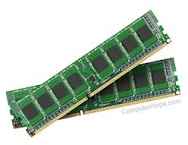
Fig. Image of a RAM
- RAM is Volatile: This is a fancy word meaning that all information in RAM disappears when you turn off the computer. If you are typing a long essay and the power goes out, any work that you didn’t “save” was sitting only in RAM and is gone forever!
- ROM (Read-Only Memory): Think of ROM like the manufacturer’s manual that is written in stone.
- ROM is Non-Volatile: The information is permanent and cannot be changed or deleted. The computer needs this information to know how to start up (boot) when you first turn it on.
Secondary Storage Examples:
- Hard Disk Drive (HDD or “Hard Drive”): Think of this as the main warehouse in your computer. This is where all your operating systems, programs, and files are stored.
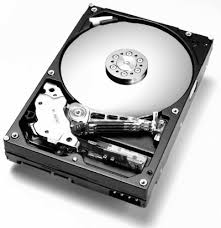
Fig. Image of a Hard Drive
- It is a heavy, metal box that is usually inside the computer, where it holds a huge amount of data permanently.
- Flash Drive (or “USB Stick”): Think of this like a small, pocket-sized safe. It is portable. You can copy files onto it from one computer, put it in your pocket, and then copy them to a different computer. It’s perfect for carrying around assignments.
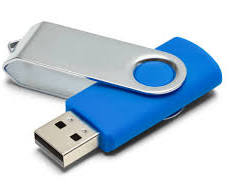
Fig. Image of flash drive
Period 2
STORAGE MEASUREMENTS (BIT, BYTE, MB, GB, TB)
Just like we measure the weight of fruits in kilograms or the distance between two places in kilometers, we measure how much space a file takes on a computer in “computer measurement units.”
Computer units are all built from the very smallest one, called a bit.
| Unit | Size |
| Bit (b) | The very smallest Unit (one 0 or 1) |
| Byte (B) | 8 bits |
| Kilobyte (KB) | About 1,000 bytes. |
| Megabyte (MB) | About 1,000 KB |
| Gigabyte GB | About 1,000 MB |
| Terabyte TB | About 1,000 GB |
The Order (smallest to largest):
Bit < Byte < Kilobyte (KB) < Megabyte (MB) < Gigabyte (GB) < Terabyte (TB)
Period 3
IMPORTANCE OF DATA STORAGE
Why do we need storage hardware?
- To Save Your Work: When you work on an assignment or play a game, all that effort needs to be stored permanently so you don’t lose it. Storage hardware allows you to “Save” your progress.
- To Run the Computer: The operating system (like Windows or macOS) and all your other applications must be stored on a hard drive for the computer to work.
- To Keep Memories: We use storage to hold thousands of precious photos, family videos, and files for our whole lives. It’s like a digital time capsule.
- To Share Information: Portable storage devices like flash drives allow you to easily take files from school to home or share them with friends.
WEEK 7
MID-TERM BREAK
Enjoy your holiday and rest!
WEEK 8
TOPIC: BASIC SOFTWARE CONCEPTS
CONTENTS:
- Meaning of Software
- System software and application software
- Examples: OS, Word processors, browsers
- Functions of an Operating system
Period 1
MEANING OF SOFTWARE
Think of your phone. You can hold the metal and glass phone in your hand (that’s the hardware). Inside the phone are the apps, like a game you play. The game is just a bunch of secret instructions that make pictures move on the screen.
Definition:
Computer software (or “programs”) is a set of digital instructions that tell the computer’s hardware exactly what to do. Hardware cannot do anything without software. Software is the “invisible thought” inside the computer.
Example: A computer monitor is hardware. But the specific words, colors, and pictures you see on it are the software.
Period 2
SYSTEM SOFTWARE AND APPLICATION SOFTWARE
We can divide all software into two big main groups:
- System Software (The Boss of the Computer)
Think of this software as the foundation of the entire computer system. Its main job is to manage the hardware and make it work together with other software. You can’t use the computer without system software.
The most important type of system software is the Operating System (OS).
- Application Software (The Special Tools)
Think of this as software that lets you do a specific, special job. This is the software you choose to open, like an app on your phone.
Application software lets you play games, surf the internet, write a report, or edit photos.
EXAMPLES: OS, WORD PROCESSORS, BROWSERS
Let’s see real examples of these types of software:
Examples of System Software (Operating Systems):
- Windows (Microsoft): The most common OS for desktop and laptop computers.
- macOS (Apple): The OS used on Apple computers.
- Linux (Ubuntu OS): This is mostly used by developers for top security of data and information.
- Android (Google): The most common OS for smartphones and tablets.
- iOS (Apple): The OS used on iPhones and iPads.
Examples of Application Software (The Tools):
- Word Processors: Software for typing and writing text (e.g., Microsoft Word, Google Docs).
- Web Browsers: Software for surfing the internet (e.g., Google Chrome, Safari, Microsoft Edge).
- Media Players: Software for watching videos or listening to music (e.g., VLC Media Player, Spotify).
- Video Games: Every single game is a piece of application software!
Period 3
FUNCTIONS OF AN OPERATING SYSTEM
The operating system (OS) is the most important single piece of software on any computer. Let’s understand what this “boss” software does:
- Boots the computer: The OS is the very first program that starts when you turn the computer on.
- Manages Hardware: The OS makes sure the CPU, memory (RAM), keyboard, and all other parts work together nicely. When you tell your computer to print, the OS is the one who tells the printer “start printing.”
- Manages Files: The OS takes care of all your files and folders. It lets you create new folders, move files from place to place, and delete them.
- Runs Other Software: The OS creates the space for you to open and run application software like Google Chrome or a game.
- User Interface: The OS creates the entire experience you see on your screen—the desktop background, the menu of apps, and the buttons you click. It is the “bridge” between you and the computer.
WEEK 9
TOPIC: COMPUTER BOOTING AND SHUTDOWN PROCESSES
CONTENTS:
- Meaning of booting
- Steps in booting and shutting down
- Safe handling of devices
Period 1
MEANING OF BOOTING
“Booting” is the computer word for turning on and starting up a computer system of any digital electronic device.
This is an important part of taking care of your computer.
Definition:
Booting is the set of initial steps the computer performs automatically to check all its hardware and software components to get ready for you to use it.
Period 2
STEPS IN BOOTING AND SHUTTING DOWN
- Steps to Boot Up (Turn On) a Computer:
- Check power: Make sure the power cord is plugged into a wall outlet that works.
- Switch on: Press the power button on the front of the computer case (CPU). You might also need to turn on the power button on the monitor.
- POST (Power-On Self-Test): This is a special, automatic “check-up” the computer does for itself. You will see text flash on the screen. It’s checking that the RAM, hard drive, and other parts are working correctly.
- Loading OS: The computer finds the operating system (like Windows) and “copies” it from the hard drive into RAM so it can “play” it for you.
- Login: Once everything is loaded, you will see a screen where you can type your password (or click your name) to log in.
- The Desktop: After you log in, your desktop background, icons, and menus will appear. The computer is now ready for you!
- Steps to Shut Down (Turn Off) a Computer properly:
This is very important. Pulling the plug is called an “improper shutdown” and can damage your computer.
- Save all your work: Make sure you have saved all files you were working on.
- Close all applications: Click the “X” in the corner to close all your open games, apps, and browsers.
- Use the OS menu: Click the Start menu (or the Windows logo) on the taskbar.
- Power Options: Look for a icon that looks like a circle with a line in it (the Power icon).
- Click Shut Down: Click the “Shut Down” option from the list.
- Wait: The computer will show a “Shutting down…” screen. The computer will then turn off on its own. Now it is safe to walk away. You do not need to push any buttons.
Period 3
SAFE HANDLING OF DEVICES
Here are the steps to take in order to keep your digital devices safe during booting and shutdown:
- Be patient: Never push the power button again and again while waiting for it to turn on. Let it take its time.
- Don’t force it: If a computer isn’t turning on or shutting down quickly, don’t just hold the power button down forever to force it off unless a teacher tells you to.
- Listen to warning sounds: Computers will sometimes make beep codes if something is wrong. Report anything unusual to your teacher.
- Don’t mess with power cables: Avoid playing with or tripping over cables during booting.
WEEK 10
TOPIC: MS WORD (INTRODUCTION)
CONTENTS:
- Opening, Saving and Editing Documents
- Formatting text and inserting pictures
- Page setup and printing basics
Period 1
OPENING, SAVING, AND EDITING DOCUMENTS
- Opening a Document:
You can start fresh or you can work on one you already made/saved. Opening a document requires you to locate where you saved it, what name you used to save a then double clicking on it for it to open.
Step by Step Procedure:
- To start fresh: Open MS Word, and on the home screen, click “Blank Document.”
- To work on an old file: Open MS Word and click “Open.” Then navigate to the folder where you saved your document before.
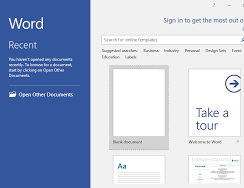
Fig. Image shows how a new document is being opened.
- Saving a Document:
This is the single most important rule in technology: SAVE YOUR WORK OFTEN!
Step by Step Procedure:
- Click the “File” tab in the top-left corner.
- Choose “Save As” for the very first time you save a new document. Give it a descriptive name (like “My Essay JSS1”) and choose which folder you want to keep it in.
- For any changes after that, just click the “Save” icon at the top (it looks like an old floppy disk), or press Ctrl + S on your keyboard to save quickly.
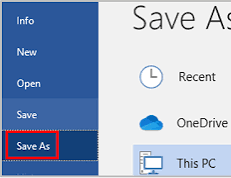
Fig. Image shows how a new document is being saved.
- Editing Text:
Editing means “changing” what you have written.
Step by Step Procedure:
- Typing: Use the keyboard. The flashing vertical line (the “cursor”) shows where your next letter will appear.
- Deleting: Use the BackSpace key to erase letters to the left of the cursor, and the Delete key to erase letters to the right.
- Moving text: Highlight text with your mouse. Use **Ctrl + X** to “cut” (remove) it and Ctrl + V to “paste” (place) it somewhere else.
- Undo: If you make a big mistake, click the “Undo” button (the arrow pointing backward) or press **Ctrl + Z** to go back one step.
Period 2
FORMATTING TEXT AND INSERTING PICTURES
- Formatting Text:
Formatting is about changing the look of your text, not just the words.
They include:
- Font: Change the entire style of the letters to make them look different (e.g., Arial, Times New Roman).
- Font Size: Make your text bigger (for headers) or smaller (for details).
- Bold (B): Make your text thick and dark.
- Italics (I): Make your text lean to the right.
- Underline (U): Put a line underneath your text.
- Text Color: Change the color of your letters.
- Alignment: Make your whole paragraph line up against the left edge, the center, or the right edge of the page.
- Inserting Pictures:
Pictures make any document look much better.
- Click the “Insert”
- Click “Pictures.”
- Choose if you want to insert a picture from “This Device” (your own saved photos) or from “Online Pictures” (to search on the internet).
- Navigate to the picture you want and click “Insert.” You can then click the picture to resize it or drag it to a new spot.
Period 3
PAGE SETUP AND PRINTING BASICS
- Page Setup:
This is how you arrange your document page.
- Click the “Layout”
- Orientation: Choose if you want your page upright like a vertical portrait (Portrait) or wide like a horizontal landscape (Landscape).
- Margins: Adjust the blank white border around the edge of the page. You can make it wider or narrower.
- Size: Select the size of paper you will be using to print. The most common size is “A4.”
- Printing Basics:
When you are ready, you can make a paper copy.
- Click the “File”
- Choose ““
- You can then select how many copies you want.
- Click the big “Print” button to send it to the printer.
